# トリガー

## トリガーの新規作成 <a href="#create" id="create"></a>

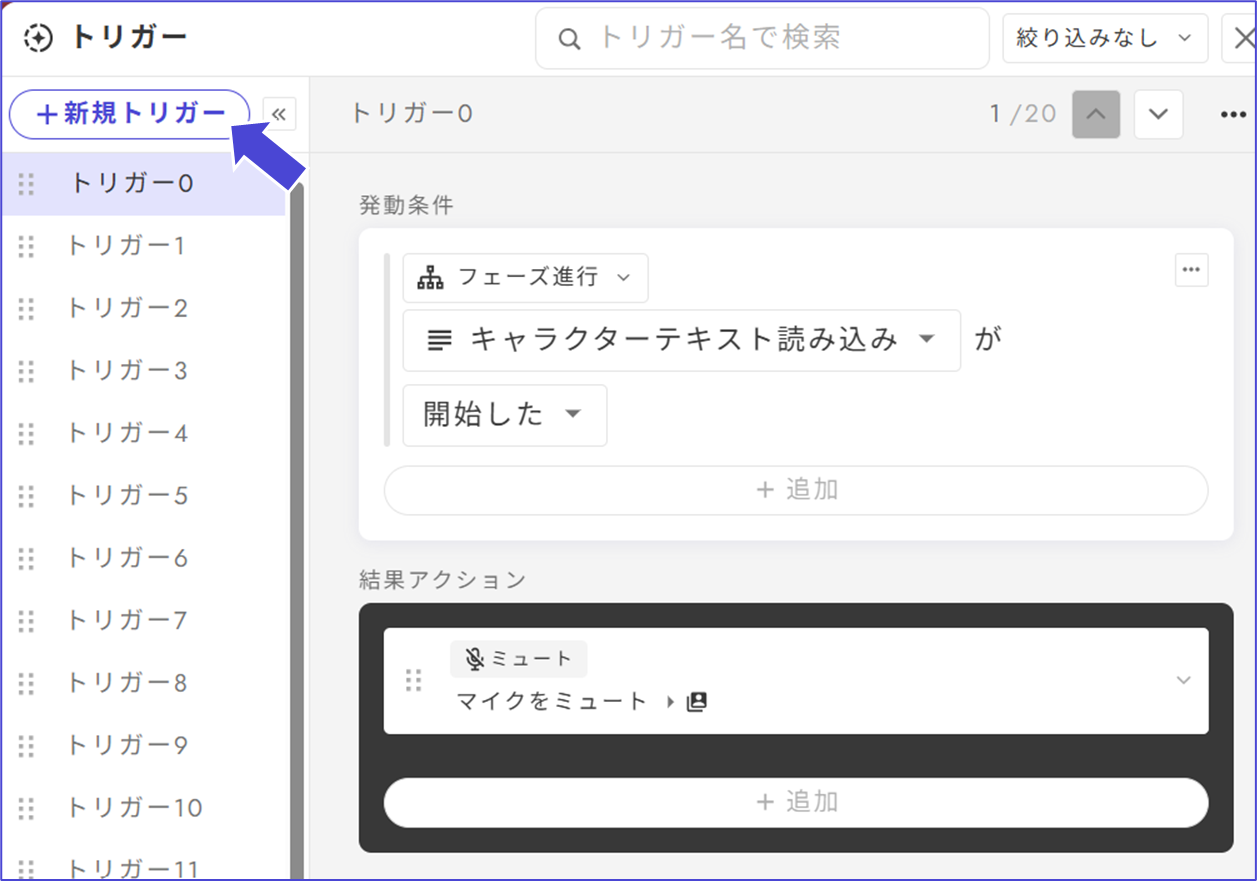
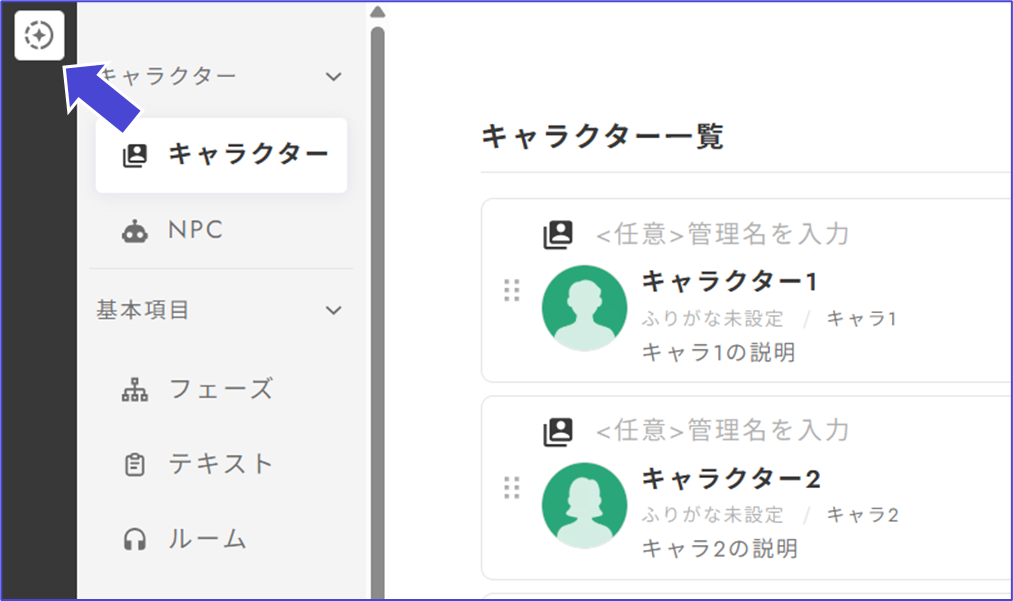
トリガーは左上の♦マークから新規作成します。

<div align="left"><figure><img src="/files/5aHblkjANgu9xe3epjl5" alt="" width="563"><figcaption></figcaption></figure></div>

「＋新規トリガー」をクリックし、「何が起きたら（発動条件）」「どうなってほしいのか（結果アクション）」を設定します。

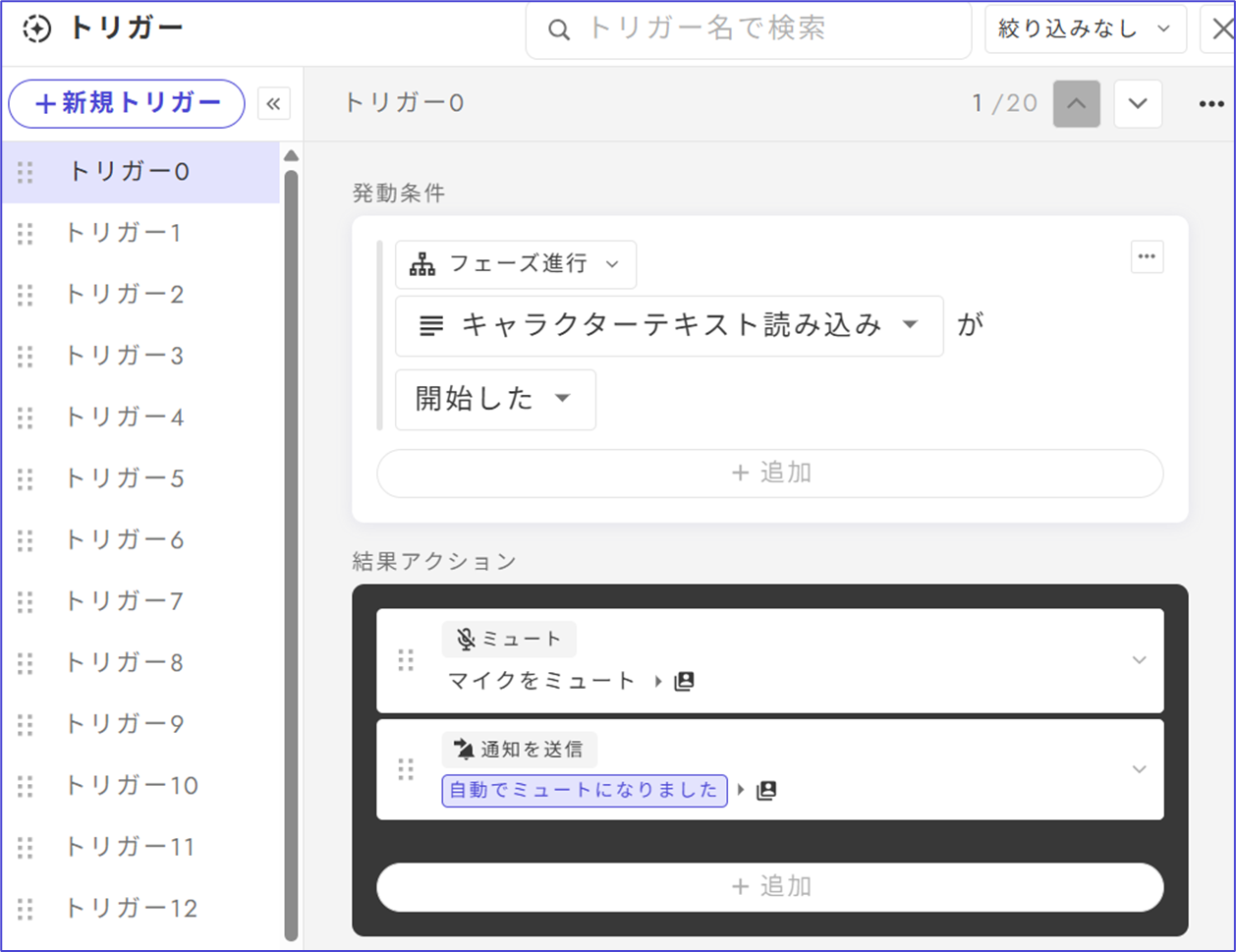
以下の例では、キャラクターテキスト読み込み開始時に全員自動でミュートにするトリガーになっています。

<div align="left"><figure><img src="/files/qubpPmMfq0EZXVVTTrKP" alt="" width="563"><figcaption></figcaption></figure></div>

※自動発動ではなく**誰かがボタンを押してから発動**してほしいものは、[アクション](/basic-features/action.md)で設定してください。

## トリガーの活用例 <a href="#example" id="example"></a>

### フェーズ開始時に自動ミュートにする <a href="#ex-mute" id="ex-mute"></a>

**テキスト読み込みフェーズ・投票フェーズ・推理発表フェーズ**などで活用できます。ミュートに切り替わったことはプレイヤーに伝わりづらいので、**「通知を送信」「SEを再生」なども合わせて設定しておく**のがオススメです。

※自動でミュートを解除する機能はありません（何らかの事情でミュートにしている際に自動でミュートが解除されてしまうトラブルを回避するためです）。

<div align="left"><figure><img src="/files/4xFontwKtI8uVtUaNzGY" alt="" width="563"><figcaption></figcaption></figure></div>

### 特定のフェーズに強制遷移させる <a href="#ex-phase" id="ex-phase"></a>

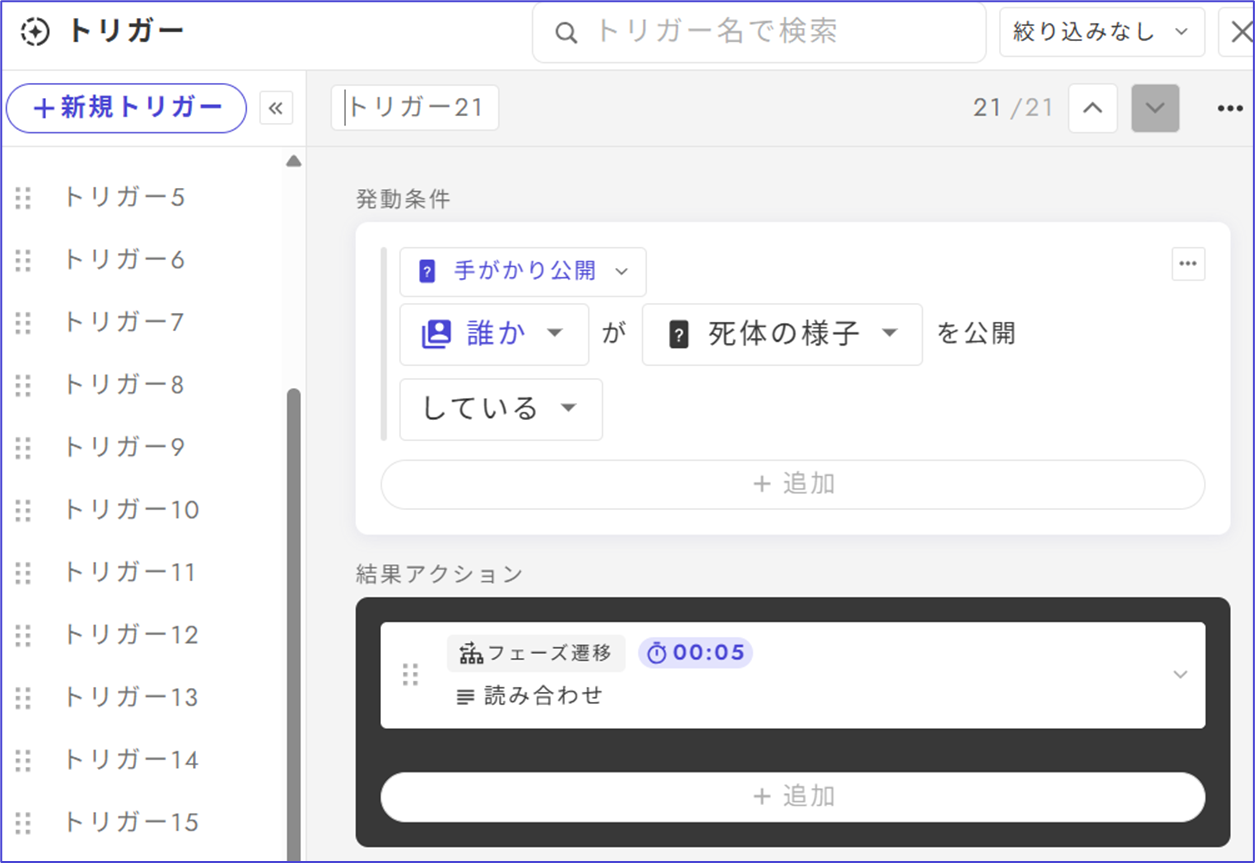
以下は、**特定の手がかりが公開**されたら該当する**読み合わせに強制遷移**する設定の例です。手がかりが公開された瞬間に遷移すると、手がかりを読む時間がないため、**数秒遅延を設けて発動させる**のがオススメです。

<div align="left"><figure><img src="/files/kaUJTNPPilQnjBgXy0YD" alt="" width="563"><figcaption></figcaption></figure></div>

### フェーズ開始の数分後に何かを起こす <a href="#ex-delay" id="ex-delay"></a>

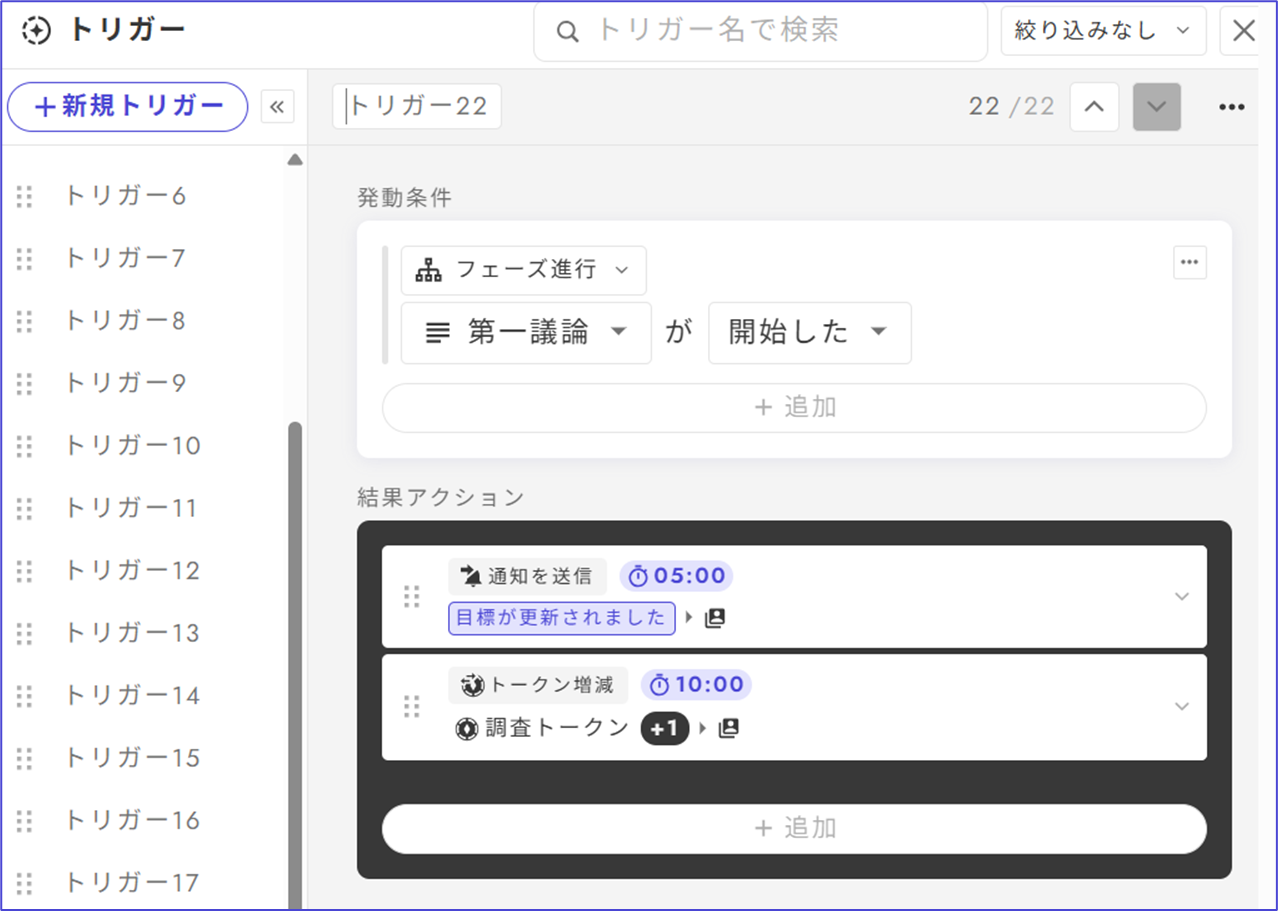
以下は、議論開始の5分後に目標を更新し、10分後に調査トークンを1枚追加する設定の例です。\
他にも「議論開始○分後に追加情報を公開する」「密談開始○分後に追加の山札が調査可能になる」「最終議論開始○分後にBGMが変わる」といった設定ができます。
<div align="left"><figure><img src="/files/YOxxfmJwhdwUMLNpM3Wu" alt="" width="563"><figcaption></figcaption></figure></div>


---

# Agent Instructions: Querying This Documentation

If you need additional information that is not directly available in this page, you can query the documentation dynamically by asking a question.

Perform an HTTP GET request on the current page URL with the `ask` query parameter:

```
GET https://docs.studio.uzu-app.com/basic-features/trigger.md?ask=<question>
```

The question should be specific, self-contained, and written in natural language.
The response will contain a direct answer to the question and relevant excerpts and sources from the documentation.

Use this mechanism when the answer is not explicitly present in the current page, you need clarification or additional context, or you want to retrieve related documentation sections.