> For the complete documentation index, see [llms.txt](https://docs.studio.uzu-app.com/llms.txt). Markdown versions of documentation pages are available by appending `.md` to page URLs; this page is available as [Markdown](https://docs.studio.uzu-app.com/ko/advanced/adjust-audio-file.md).
# 음성 파일 자체의 음량 조정하기
오디오 파일의 자체 볼륨을 조정하기
무료 음원 사이트 등에서 오디오를 다운로드했을 때 기본 볼륨이 너무 큰 경우가 있습니다. 그런 경우에 우즈 스튜디오에서 오디오 파일의 볼륨을 조정하는 방법을 소개합니다.
### ① BGM·SE 탭에서 볼륨 조정 버튼을 클릭
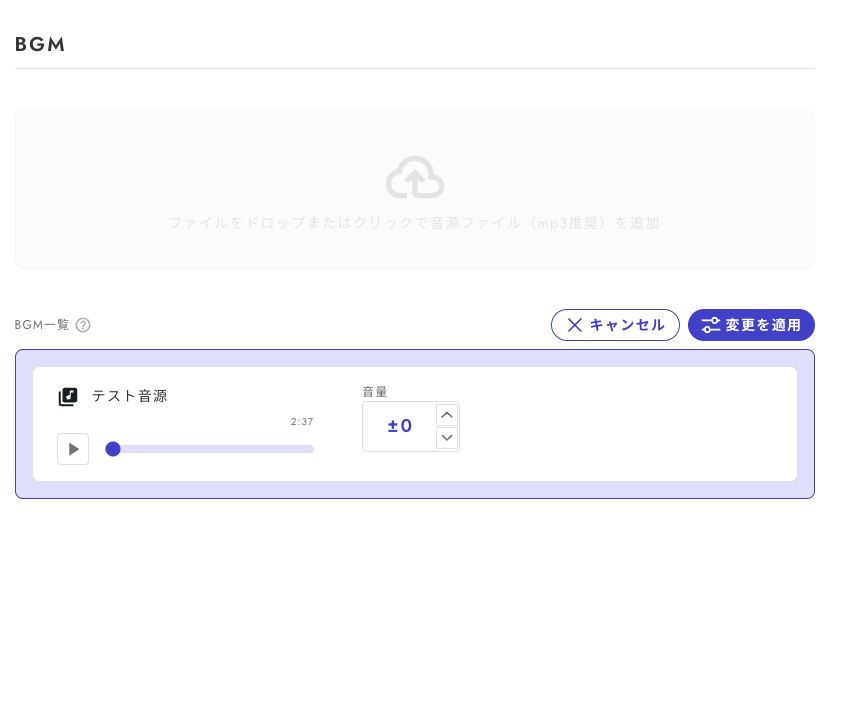
다음과 같은 화면이 됩니다.
### ② 볼륨을 조정하려는 오디오 파일의 볼륨을 조정합니다
값은 현재 볼륨에 대한 상대값이므로, 음수 값이 클수록 더 작아지고, 양수 값이 클수록 더 커집니다. 대부분의 경우 -10〜-20으로 설정해두면 충분히 작아집니다.
볼륨을 변경하면 ▶︎ 버튼으로 변경한 볼륨으로 시험 청취할 수 있습니다.
### ③ 변경을 적용하기
볼륨 설정이 끝나면 「변경을 적용」 버튼을 탭하면 오디오 파일의 볼륨이 변경됩니다. 볼륨 조정은 한 번에 10파일까지 수행할 수 있습니다.
### ④ 볼륨 확인하기
스마트폰에서 해당 시나리오의 BGM 페이지에 접속해, 이어폰을 착용한 뒤 재생 버튼을 누르면, 실제 앱 내의 볼륨과 가까운 수준을 확인할 수 있습니다.
※ PC나 이어폰 없이 재생하면 볼륨의 차이를 구분하기 어렵습니다.
.png?alt=media)