# 감상 공유 화면

감상 공유 화면이란, 토론·투표·엔딩 등 모든 것이 끝난 후에 표시되는 해설·결과 화면입니다.

<figure><img src="https://github.com/uzu-inc/studiov2-document/blob/main/packages/ko/.gitbook/assets/image%20(93).png" alt=""><figcaption></figcaption></figure>

## 탭의 내용

탭에 입력할 수 있는 내용은 「제목」「설명」「본문」의 3가지입니다.

탭 내용은 각각의 탭 오른쪽 위를 클릭하면 편집할 수 있습니다.

<div align="left"><figure><img src="https://github.com/uzu-inc/studiov2-document/blob/main/packages/ko/.gitbook/assets/image%20(94).png" alt="" width="375"><figcaption></figcaption></figure></div>

앱 화면과의 대응은 다음과 같습니다.

<figure><img src="https://github.com/uzu-inc/studiov2-document/blob/main/packages/ko/.gitbook/assets/image%20(95).png" alt=""><figcaption></figcaption></figure>

## 제목의 조건부 표시

감상 공유 화면에서 가장 처음 표시되는 제목을 조건에 따라 다르게 표시할 수 있습니다.

기본적으로 「기본 제목」 부분만 작성해두면 문제가 없지만, 「조건부 엔딩 제목을 추가」를 누르면 복잡한 분기를 설정할 수 있습니다.

<figure><img src="https://github.com/uzu-inc/studiov2-document/blob/main/packages/ko/.gitbook/assets/image%20(96).png" alt=""><figcaption></figcaption></figure>

### 탭의 순서 바꾸기

탭을 길게 눌러 다른 탭과 표시 순서를 바꿀 수 있습니다.

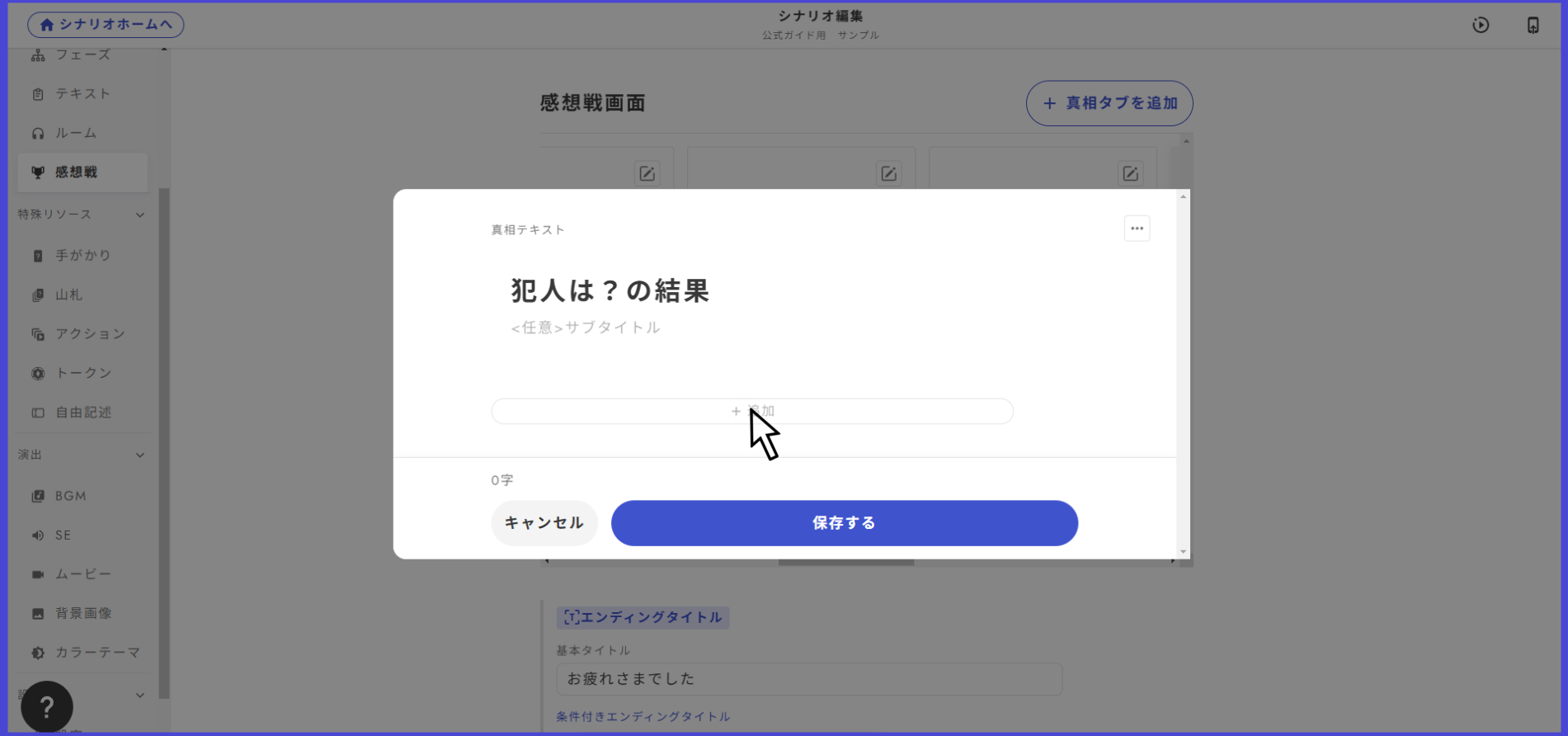
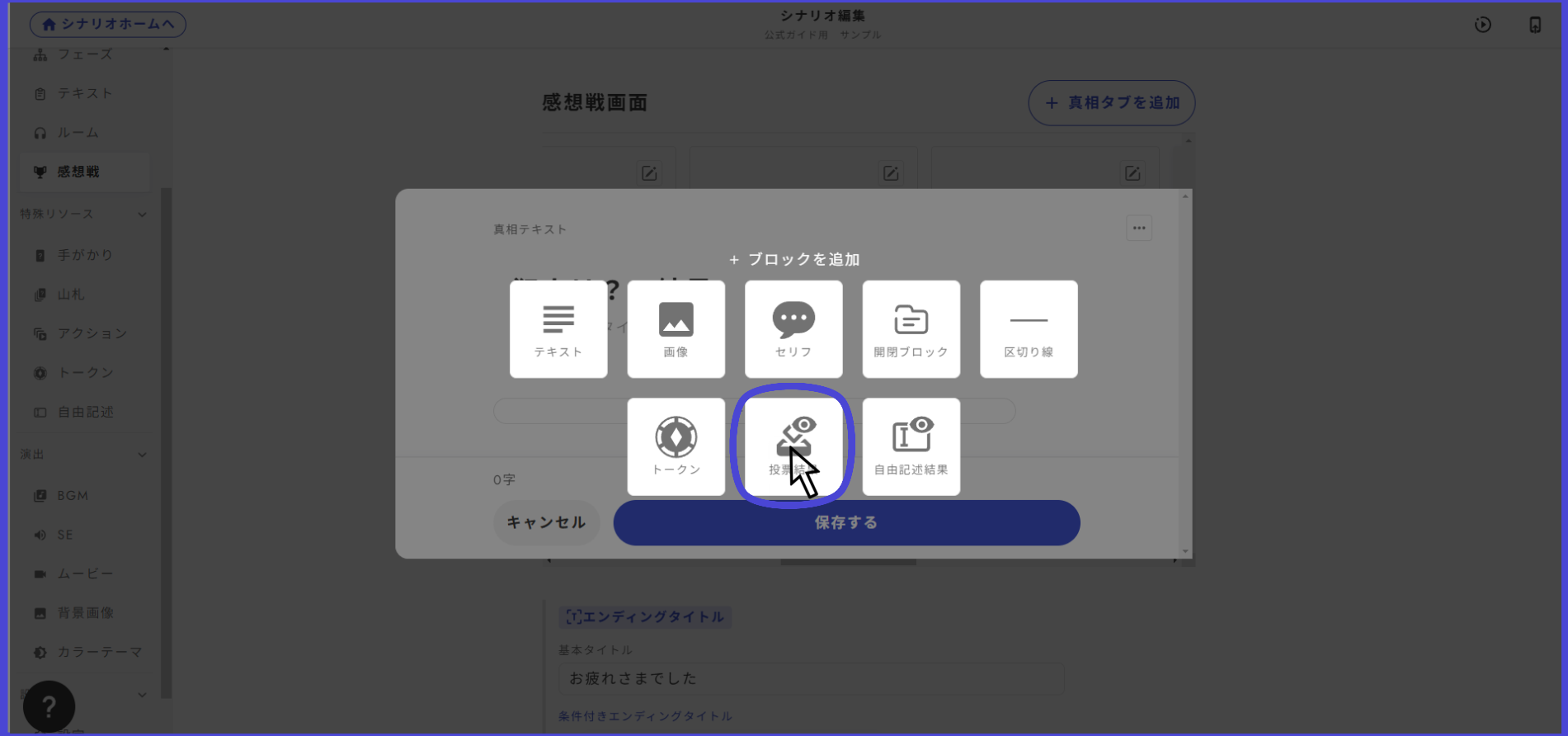
### 투표 결과를 표시 <a href="#vote" id="vote"></a>

투표 기능은 범인 투표뿐만 아니라 조사나 개별 목표의 달성 판정 등 다양한 장면에서 이용할 수 있으며, 시나리오 내에서 마련한 투표 중 감상 공유 화면에서 결과를 표시할 것을 선택할 수 있습니다.

<figure><img src="https://github.com/uzu-inc/studiov2-document/blob/main/packages/ko/.gitbook/assets/無題43_20250219060226.png" alt=""><figcaption></figcaption></figure>

투표를 추가하고 싶은 진상 탭을 열고, 추가를 클릭합니다.

<figure><img src="https://github.com/uzu-inc/studiov2-document/blob/main/packages/ko/.gitbook/assets/無題43_20250219060544.png" alt=""><figcaption></figcaption></figure>

투표 결과를 선택하면, 플레이어가 투표 결과를 열람할 수 있게 됩니다.

### 미획득 단서 목록을 표시

탭 목록의 맨 오른쪽에 있는 「미획득 단서 목록」이라는 탭의 토글을 켜면, 감상 공유 탭 목록의 마지막에 그 이벤트에서 누구에게도 획득되지 않았던 단서의 목록이 표시됩니다.

<figure><img src="https://github.com/uzu-inc/studiov2-document/blob/main/packages/ko/.gitbook/assets/image%20(97).png" alt=""><figcaption></figcaption></figure>


---

# Agent Instructions: Querying This Documentation

If you need additional information that is not directly available in this page, you can query the documentation dynamically by asking a question.

Perform an HTTP GET request on the current page URL with the `ask` query parameter:

```
GET https://docs.studio.uzu-app.com/ko/basic-features/result.md?ask=<question>
```

The question should be specific, self-contained, and written in natural language.
The response will contain a direct answer to the question and relevant excerpts and sources from the documentation.

Use this mechanism when the answer is not explicitly present in the current page, you need clarification or additional context, or you want to retrieve related documentation sections.